
What Is Professional Event Live Streaming and How Does It Work?
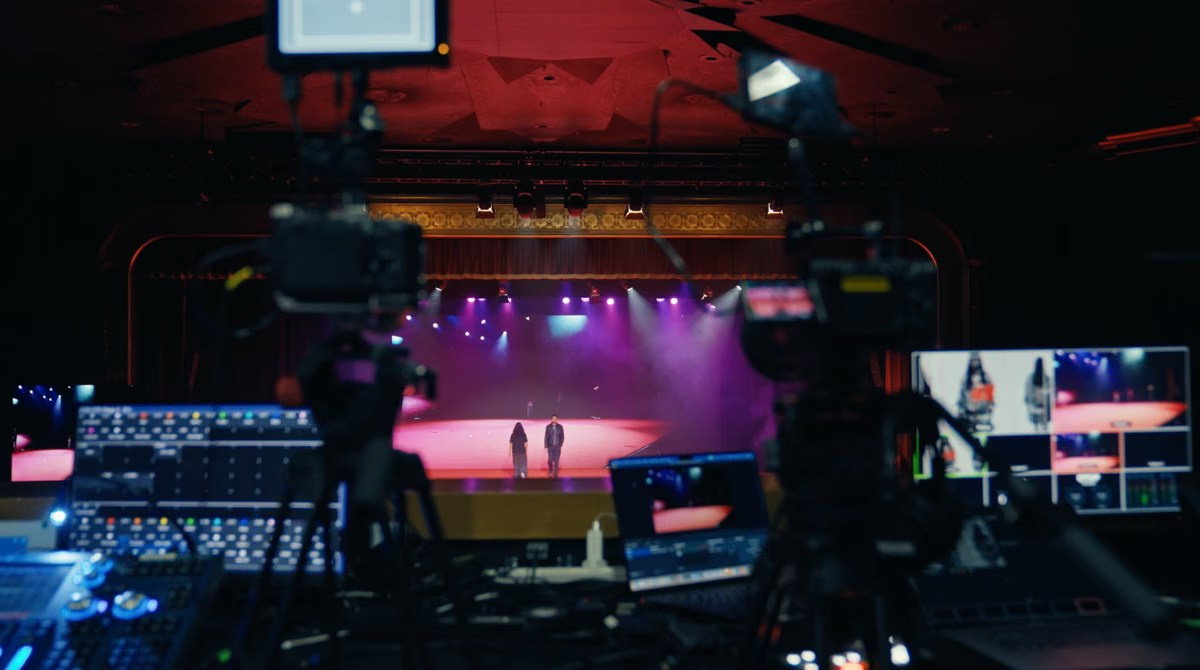
Professional event live streaming allows an audience to watch a conference, presentation, product launch, panel discussion or corporate meeting online as it happens.
At first glance, the process may appear simple: connect a camera to a computer and broadcast the video to YouTube, Zoom or another platform. That may be sufficient for a small informal session, but it is not the same as a professionally produced event stream.
A corporate broadcast may involve several cameras, presentation slides, microphones, branded graphics, remote speakers, audience questions and a recording that must remain available after the event. All of these elements need to reach the online audience in real time without interrupting the programme inside the venue.
Professional live streaming is therefore a coordinated production workflow rather than a single piece of equipment. It combines video production, audio engineering, internet connectivity, platform management and event coordination.
This guide explains how professional event live streaming works, what equipment and crew may be required, and what organisers should clarify before booking a production company.
What You Will Learn
By the end of this guide, you will understand:
- How a professional live stream moves from the venue to the online audience
- Which cameras, audio systems and production equipment may be required
- What a video switcher and streaming encoder do
- Why venue internet must be tested properly
- How slides, graphics and remote speakers are included
- Which backup systems protect the broadcast
- What organisers should prepare before the event
What Makes Event Live Streaming Professional?
The difference between a basic stream and a professional broadcast is not simply image quality.
A professional production is designed around the complete viewer experience. The online audience should be able to see the relevant speaker, hear every presentation clearly, follow slides and understand what is happening in the room.
This usually requires several production elements working together:
- One or more cameras
- Professional microphones or an audio feed from the venue
- A video switcher
- A streaming encoder
- Presentation capture
- Branded graphics
- A stable internet connection
- Local video and audio recording
- An operator or production crew
- A selected streaming platform
The exact setup depends on the event. A short internal announcement may require one camera and one microphone. A conference with panel discussions, keynote presentations and remote contributors may require multiple cameras, an audio engineer, graphics, presentation capture and a dedicated streaming operator.
The objective is not to use as much equipment as possible. It is to build the smallest reliable system that covers every essential part of the event.
How Does Professional Event Live Streaming Work?
A professional stream follows a chain of connected stages.
Cameras capture the event. Microphones provide the sound. Presentations and graphics are added to the production. A video switcher combines these sources into one programme feed. An encoder converts that feed into a format that can be transmitted online. The selected platform then distributes the broadcast to viewers.
Each stage affects the final result.
A high-quality camera cannot compensate for distorted audio. A powerful encoder cannot protect a stream if the venue internet is unstable. A reliable connection cannot solve poor camera positioning or missing presentation slides.
This is why live streaming should be planned as one integrated system.
Step 1: Cameras Capture the Event
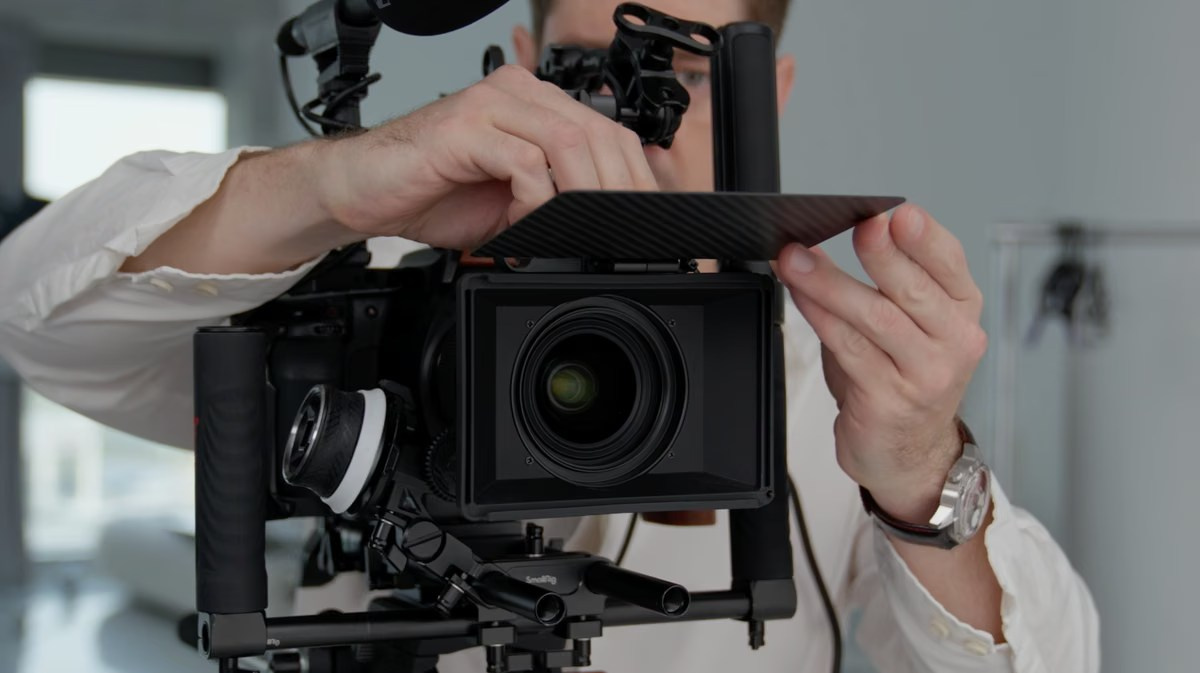
The number of cameras depends on the event format and the expected viewing experience.
Single-Camera Streaming
A single camera may be suitable for:
- Internal company announcements
- Short presentations
- Small training sessions
- One-person webinars filmed at a venue
- Simple executive addresses
The limitation is visual flexibility. If the speaker moves or another person joins the stage, the audience may not see the most relevant action.
A single-camera stream can still look professional when the event is controlled and the framing remains appropriate throughout.
Multi-Camera Streaming
Multiple cameras allow the director to change angles during the broadcast.
A typical conference setup may include:
- A wide shot of the complete stage
- A closer angle for individual speakers
- A separate camera for the audience
- An additional angle for panels or demonstrations
The cameras are connected to a video switcher. The operator selects which angle is shown to the online audience.
This makes the broadcast more dynamic, but it also provides operational protection. If a person walks in front of one camera, the director can temporarily use another angle.
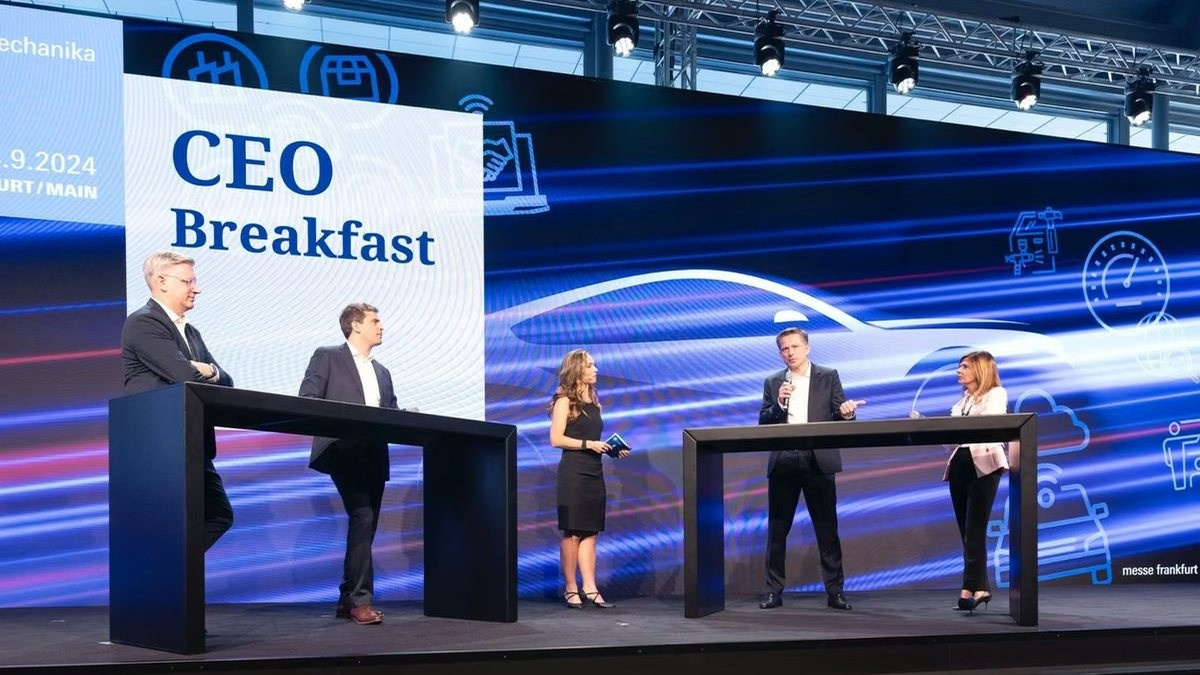
Camera quantity should be based on stage layout and programme structure rather than guest count. A small panel with six speakers may require more visual coverage than a large audience watching one presenter at a lectern.
Step 2: Audio Is Captured and Mixed
Audio is usually the most important technical element of a corporate stream.
Viewers may tolerate a less dynamic camera angle, but they will quickly leave a broadcast if speech is difficult to understand.
Audio may come from:
- Wireless lapel microphones
- Handheld microphones
- Lectern microphones
- Headset microphones
- Panel discussion microphones
- The venue’s main sound system
- Remote speakers joining through video conferencing software
In many venues, the production team receives an audio feed from the AV provider. This can be efficient, but it should not be accepted without testing.
The sound in the room may appear clear while the feed delivered to the streaming system is too loud, distorted or missing individual microphones. A separate audio check should therefore be conducted before the broadcast begins.
For important events, the production team may also create a backup recording from another audio source. This does not prevent every live issue, but it can protect the final recording delivered after the event.
Step 3: Slides and Visual Content Are Added
Online viewers need to see more than the speaker.
If a presentation includes charts, videos, product demonstrations or detailed slides, filming the venue screen may not be sufficient. Text may be difficult to read, and the camera exposure may constantly change between the speaker and the bright display.
A professional production can receive the presentation as a direct video source.
The director can then choose between:
- Full-screen slides
- Full-screen speaker view
- Speaker and presentation side by side
- Picture-in-picture layouts
- Branded templates with names and titles
This creates a clearer experience for the online audience.
Presentation capture should be discussed with the event’s AV team in advance. The production company needs to know which laptop or presentation system will be used, which video outputs are available and whether embedded audio must also be captured.
A last-minute change from one laptop to another can create compatibility problems if the required adapters or formats have not been considered.
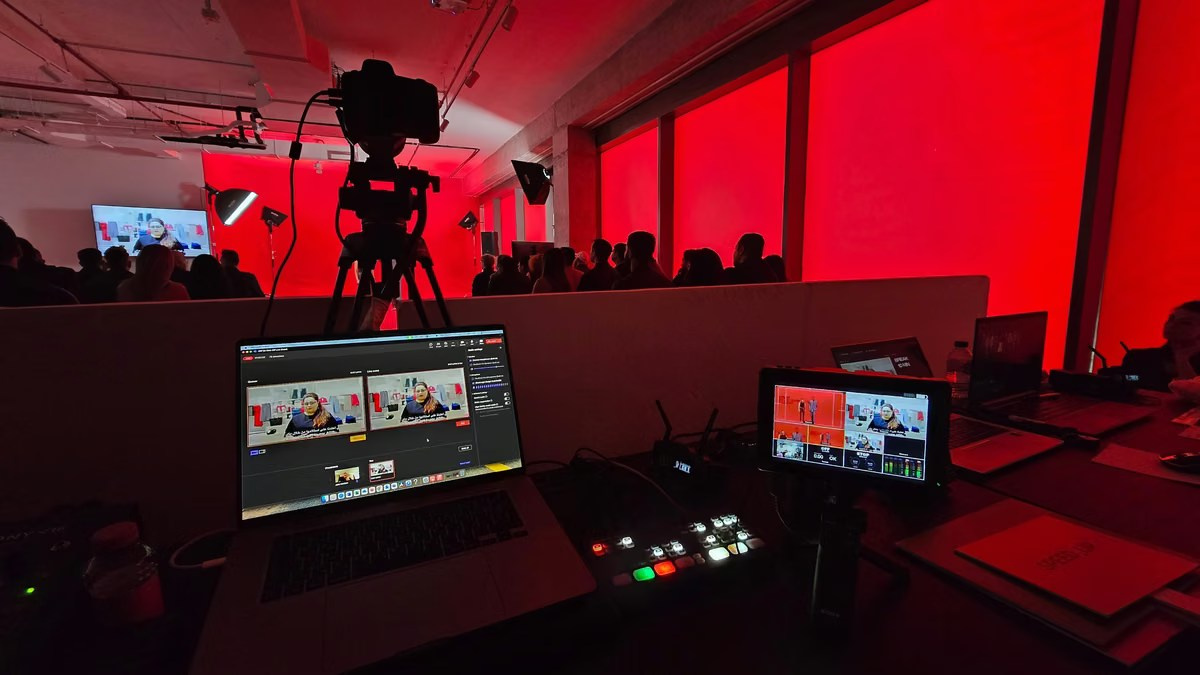
Step 4: The Video Switcher Creates the Programme
The video switcher is the centre of a multi-source live production.
It receives the cameras, slides, graphics and other video sources. The operator selects what the viewers see at each moment.
For example, the broadcast may begin with a branded holding screen. The director then cuts to a wide stage shot as the speaker enters, switches to a closer camera during the presentation and displays the slides when detailed information appears.
The switching process should follow the event naturally.
Changing angles too frequently can make a corporate stream feel distracting. Remaining on one shot for too long can make it feel static. The director needs to understand the programme and anticipate when a speaker will move, when a panelist is about to answer and when the presentation contains information the audience needs to read.
Step 5: Graphics and Branding Are Included
Graphics help the online audience understand the event.
Common elements include:
- Event title
- Company logo
- Speaker names and job titles
- Session titles
- Holding screens
- Countdown screens
- Break messages
- Sponsor graphics
- Closing screens
These elements should be prepared and approved before the event.
Speaker names and titles need particular attention. Corporate titles may be long, and incorrect spelling can be visible to the entire audience during the broadcast.
The production team should receive the final speaker list rather than copying information from an early event agenda that may no longer be accurate.
Graphics should support the content without covering important parts of the video. Mobile viewers also need to be considered because small text may be unreadable on a phone screen.
Step 6: The Encoder Sends the Stream Online
The encoder converts the completed programme feed into a compressed digital stream that can be transmitted to the selected platform.
The encoder may be a dedicated hardware device or professional software running on a production computer.
Its settings affect:
- Resolution
- Image quality
- Frame rate
- Data rate
- Compatibility with the platform
- Required internet bandwidth
Higher quality generally requires more bandwidth. However, simply using the highest possible settings is not always the safest choice.
The stream should be configured according to the platform, available connection and viewing requirements. A stable broadcast at an appropriate quality is more valuable than a higher-resolution stream that repeatedly buffers or disconnects.
Step 7: The Platform Distributes the Broadcast
The final stream may be delivered through:
- YouTube
- Vimeo
- Zoom
- Microsoft Teams
- A private event platform
- A password-protected webpage
- A company intranet
The right platform depends on the audience and the required level of access control.
A public product launch may be broadcast through YouTube or LinkedIn. An internal company meeting may need a private Teams or Zoom session. A paid conference may require registration and access through a dedicated event platform.
The streaming platform should be selected before the technical workflow is finalised because platforms handle video, privacy, audience interaction and remote speakers differently.
Internet Connectivity: The Most Common Point of Failure
A professional production requires a reliable upload connection.
The most important factor is not the advertised internet package but the actual connection available to the streaming equipment inside the venue.
Whenever possible, the production system should use a dedicated wired connection rather than public Wi-Fi.
A proper test should check:
- Upload speed
- Connection stability
- Network restrictions
- Available wired ports
- Whether the connection is shared with guests
- Whether the venue blocks streaming traffic
- The exact location where the equipment will operate
A speed test completed in an empty ballroom does not always reflect event conditions. Once hundreds of guests connect their phones and laptops, a shared network may behave differently.
For important broadcasts, backup connectivity should be considered. Depending on the event, this may involve a second internet line, bonded mobile connections or another failover solution.
No backup system can guarantee that every external network will remain available, but a planned alternative can reduce the risk of a complete interruption.
How Are Remote Speakers Included?
Remote speakers add another layer of complexity.
They may join through Zoom, Microsoft Teams or another video conferencing platform. Their video and audio must be brought into the production while the event feed is sent back to them.
This creates a two-way communication workflow.
The remote speaker may need to:
- See the stage or moderator
- Hear the room
- View presentation slides
- Receive instructions from the production team
- Speak without hearing a delayed echo of their own voice
A technical rehearsal is strongly recommended.
The speaker’s internet connection, camera, microphone, lighting and environment affect the result. Even a well-produced venue stream can look inconsistent if a remote guest joins from a dark room using an unstable connection and a laptop microphone.
The production team should also establish how to communicate with the remote speaker privately if a problem occurs during the session.
Why Local Recording Is Still Necessary
A live stream should usually be recorded locally in addition to the platform recording.
Platform recordings may be useful, but they are already compressed and may include any interruptions that occurred during transmission.
Local recording can provide:
- Higher image quality
- Cleaner audio
- Separate camera recordings
- Presentation files
- A backup if the platform recording fails
- Material for future editing
This becomes particularly important when the client later needs full session recordings, social media clips or a highlight video.
However, those deliverables must be discussed before the event. A production configured only for a live programme may not automatically record every camera and microphone separately.
Which Crew Members May Be Required?
A simple stream may be operated by one or two people. Larger productions may involve:
- Technical director or vision mixer
- Camera operators
- Streaming engineer
- Audio technician
- Graphics operator
- Production coordinator
- Remote speaker manager
- On-site editor
The crew should be based on the production complexity.
One person may be able to operate a camera and encoder during a controlled presentation, but that person cannot simultaneously manage several cameras, troubleshoot audio, update graphics and coordinate remote speakers without increasing operational risk.
Ask the supplier who will perform each role and how technical issues will be handled while the event continues.
What Happens Before the Event?
Pre-production is where many streaming problems are prevented.
The production company should review:
- Event agenda
- Stage layout
- Venue internet
- Camera positions
- Audio system
- Presentation workflow
- Speaker list
- Remote contributors
- Graphics
- Platform access
- Privacy requirements
- Recording and delivery expectations
A site visit is valuable for complex productions, unfamiliar venues and business-critical streams.
It allows the team to identify cable routes, camera positions, power availability, network access and coordination requirements with the venue’s AV provider.
The production company should also clarify who controls the presentation, who approves the broadcast and who can make decisions if the schedule changes.
Technical Rehearsal and Sound Check
The rehearsal should test the complete system, not only individual components.
This includes:
- Every microphone
- Every camera
- Presentation slides
- Embedded videos
- Graphics
- Remote speakers
- Platform connection
- Local recording
- Backup systems
A common issue occurs when organisers test static slides but not videos embedded in the presentation. On the event day, the video may play without sound or fail to appear correctly in the broadcast.
Another common issue is changing the presentation file after the rehearsal. The final version may use different video formats, fonts or transitions.
Where possible, the production team should receive and test the actual presentation files that will be used.
Common Live Streaming Mistakes
Relying on Venue Wi-Fi
Public or guest Wi-Fi may not provide the stability required for a professional broadcast. A wired or dedicated connection is usually preferable.
Treating the Stream as a Camera Service
Live streaming also involves audio, presentations, graphics, encoding, platform access and recording. Ignoring any of these elements can affect the broadcast.
Skipping the Rehearsal
A rehearsal identifies incorrect audio feeds, missing adapters, remote speaker issues and presentation problems before viewers are watching.
Providing Graphics at the Last Minute
Incorrect names, titles and sponsor logos become difficult to correct once the live programme has started.
Assuming the Platform Recording Is Enough
The platform recording may be compressed or incomplete. Local recording provides greater control over the final files.
Using Too Few People for a Complex Production
A technically capable operator still has limited attention. Combining too many roles increases the likelihood that an issue will be missed.
Failing to Define Privacy Requirements
A public link, unlisted link, password-protected stream and registered private event are not the same. Access control should be agreed before invitations are distributed.
Questions to Ask a Live Streaming Company
Before confirming a supplier, ask:
- How many cameras do you recommend for our event?
- How will audio be captured?
- Can presentation slides be included directly?
- Which platform should we use?
- What internet connection is required?
- Will you test the venue connection?
- What backup connectivity is available?
- Will the stream be recorded locally?
- Can remote speakers be included?
- Who will operate the production?
- Is a technical rehearsal included?
- What happens if the event schedule changes?
- Which final recordings will we receive?
The answers should reflect your specific event rather than a generic equipment package.
Frequently Asked Questions
How much internet speed is required for event live streaming?
The requirement depends on the selected resolution, encoder settings, platform and backup plan. Stability is as important as speed. The production company should test the actual venue connection and maintain sufficient capacity above the planned streaming data rate.
Can a live stream be private?
Yes. Depending on the platform, access can be restricted through authenticated accounts, approved invitations or password protection. An unlisted link only reduces discoverability: anyone who receives it may still be able to watch. Registration alone may not restrict access if every attendee receives the same shareable link.
Can the stream include presentation slides?
Yes. Slides can be captured directly and displayed full-screen, beside the speaker or inside a branded layout.
Can remote speakers join the event?
Yes, but they should complete a technical rehearsal. Their connection, microphone, lighting and return audio must be tested before the session.
Is live streaming the same as recording an event?
No. Live streaming transmits the programme in real time. Recording preserves the content for later use. A professional setup often does both, but the required files should be defined before production.
Do we need a site visit?
A site visit is recommended for multi-camera broadcasts, important corporate events, unfamiliar venues and productions involving complex audio, presentation capture or remote participants.
Can the live stream later be edited into shorter videos?
Yes, provided the required material is recorded appropriately. Separate camera and audio recordings may offer more editing flexibility than a single platform recording.
Conclusion
Professional event live streaming is a complete production process that connects cameras, audio, presentations, graphics, encoding, internet infrastructure and an online platform.
The quality of the result depends less on any single device than on how well the entire workflow has been planned.
A reliable production company should understand the event programme, coordinate with the venue and AV team, test the internet connection, prepare backup systems and record the programme locally.
When these elements are addressed before the event, the online audience receives a broadcast that feels intentional, clear and professional rather than simply a camera pointed at a stage.
Planning a Live-Streamed Event in Dubai?
GSP Media provides professional event live streaming for conferences, corporate meetings, panel discussions, product launches, hybrid events and private business broadcasts in Dubai and across the UAE.
Our team can manage camera production, audio integration, presentation capture, graphics, streaming platforms, remote speakers and local recording as one coordinated workflow.
Corporate Event Photo & Video Company Dubai: How to Choose
What Should Be Included in a Corporate Event Photography and Video Quote?

Event Highlight Video vs Full Event Recording: What Is the Difference?

Public vs Private Live Streaming for Corporate Events

Live Streaming vs Recording an Event: Which Should You Choose?

How to Maintain Consistency Across a Fashion Ecommerce Catalogue


AI Content vs Traditional Photography and Video: What Should Your Brand Use?

How to Prepare Product References for AI Content Production

How Many Product Images Does an Ecommerce Product Page Need?

What Affects the Cost of Professional Live Streaming in Dubai?
